01
A single login shared by everyone, with no idea who changed what
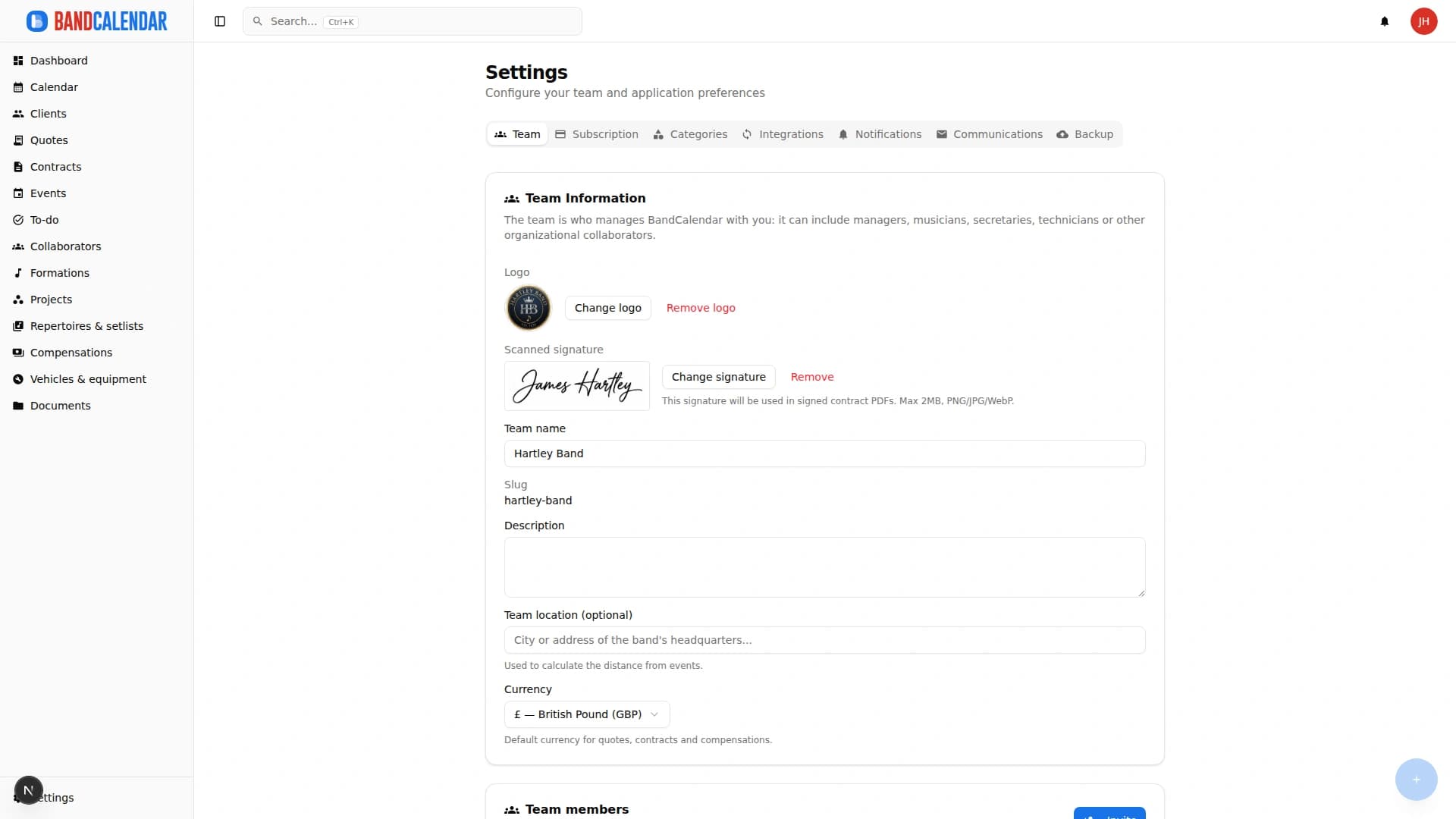
Invite members to the team and decide what they can see and do: default and custom roles with per-area permissions, visibility that can be limited to linked data and to the relevant lineups. The same account can belong to several teams and switch between them.
In this page
Common friction
A single login shared by everyone, with no idea who changed what
Fees and contracts visible even to those who should only see their own dates
External collaborators who need to check a gig without entering everything else
An agency with several artists where each contact should only see their lineups
Musicians who play in several groups and would need an account for each
Definition
Permissions say what a person can do, data visibility says on which records they can do it. In BandCalendar the owner invites members with a default role (Admin, Member, Viewer) or a custom one, chooses for each area between no access, view and edit, and can limit a member to the events they are linked to and to the lineups that concern them.
Workflow
From Settings → Team enter the email, choose the role and any limits; the person receives the invitation and accepts it with the same address.
Owner, Admin, Member and Viewer cover the most common cases; for the others you create a custom role starting from one of these.
For each area (calendar, rehearsals, clients, quotes, contracts, events, fees, documents, settings…) choose no access, view or edit.
You can restrict a member to the events and rehearsals they are linked to and to the chosen lineups; by linking their account to a collaborator they see the gigs they play.
Whoever belongs to several teams switches between them from the team selector: data, permissions and plan stay separate.
Connected features
Product screenshots
Try the workflow
Use the free plan to reproduce this workflow with your real clients, events, documents and collaborators.
Start by setting up
Internal links
Manage the band's real lineup: core musicians, substitutes, extra collaborators, roles, instruments, lineups, projects, linked events, payments, documents and different team permissions.
BandCalendar helps entertainment agencies, live-entertainment companies and organizations coordinating many performers manage numerous lineups and projects, clients, events, documents and finances through a multi-user team with granular permissions.
Track event money on two clear layers: client collections and customer refunds (commercial documents and the Finances tab), and collaborator fees with advances, line items, withholding and expense reimbursements. Summaries by period, event or musician.
Two separate tools: the data backup, to go back after a mistake with a restore guided by a preview, and the full archive with files, a ZIP with data, documents, photos and emails to browse in the browser, even offline and without BandCalendar.
The To-do area brings together Kanban tasks, rehearsals and reminders: priorities, due dates, assignees, checklists, comments and recurrences, linked to clients, events, projects and lineups. Rehearsals have place, times and participants; to pick the date there is the WhatsApp availability poll.
BandCalendar helps orchestras, ensembles, collectives and larger lineups coordinate musicians, roles, lineups, substitutions, projects, events, documents and payments without losing visibility on who plays what, where and when.
FAQ
It depends on the plan: 2 on Free, 3 on Basic, 10 on Pro and 30 on Business. Collaborators who do not use the app do not count as members.
Yes. Fees are an area with its own permission: you can deny access, grant view only or limit a linked collaborator to the fees that concern them.
Yes. With visibility limited to linked events a member sees the events they are associated with; if their account is linked to a collaborator, they also see the gigs that collaborator plays.
Collaborators are the people you work with (musicians, technicians); members are the accounts that use the app. The same person can be both and the two profiles can be linked.
Yes. The same account can belong to several teams, each with separate data, roles and plan, and can own one.
The team owner. Whoever manages members without being the owner can only invite as Member or Viewer and cannot assign administrative roles.
Compare related workflows, then open the free plan when you are ready to test it on a real booking.